Ball path
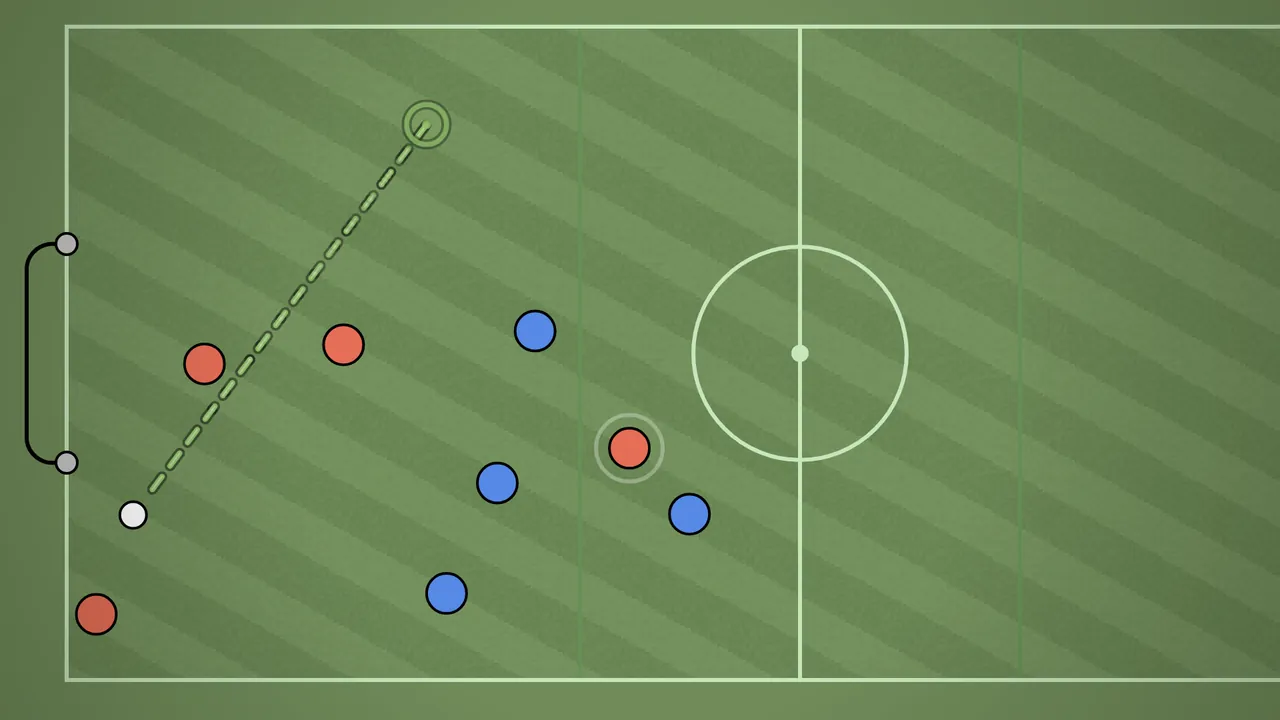
Draws the ball's path on the pitch: where it bounces off walls, where it stops, whether it goes in.
HaxBall extension
Shows where the ball is going, and where it would go if someone kicked now, before it happens. One panel, nine languages.
Desktop Brave and Chromium browsers with Manifest V2 support
Features
Turn on what you want and leave the rest. Everything starts off after install.
One panel
No extra window. Open Settings and the HaxBall Pro section is right there; type to find anything.
Interactive preview: a copy of the extension's panel you can play with. Changes are not saved.
LanguageEnglish
How fast the camera follows you and the ball. Default 1.5x: together with smooth opponents it keeps the screen calmest. Instant: locked, but it carries the ball's corrections into the whole screen and opponents shake. Lower values can briefly leave a distant ball off screen.
Shifts the camera slightly towards the way you are moving so you see more of what is ahead.
Ball, opponents and aiming stay true, only the view shifts. Turn it down or off if it bothers you.
The view zooms in smoothly as the ball comes near and returns as it moves away, which makes fine touches more precise.
It never jumps. Purely visual, it does not affect the game.
The zoom level the camera goes to while the ball is beside you. Higher means more precision but less pitch.
How close the ball has to be before the zoom kicks in. A small value waits until the ball is almost at your feet, a large one zooms earlier.
Draws the ball's path onto the pitch: where it will bounce off walls, where it stops, a green target if it is going in. If a player is near the ball it also draws a 'what if they kicked now' estimate.
Calibrated against measurement: friction 0.99 per tick, wall bounce 0.5, kick impulse 5 units. Visible only on your screen, nothing is sent to the game.
Travel only: where the ball goes at its current speed. Kick only: where it would go if the nearest player kicked now. Both (recommended): the kick estimate thick, the free travel thin.
The kick line is white when you are nearest the ball and orange when someone else is. The estimate adds 5 units from the player towards the ball on top of the ball's current speed.
How much the line stands out. Subtle: thin dashed trail, no arrow. Medium: a little clearer, small arrow. Bold: thick line and full arrow head.
Every mode leaves a gap around the ball so the ball and its surroundings stay visible.
How many seconds ahead are drawn. The line fades as it goes.
The 'until the ball stops' option calculates all the way to a standstill, which helps on long passes.
Writes each player's speed instead of their avatar. The disc design is kept exactly, the game draws it, only the text changes.
The number is read from the engine's authoritative state. Player speed tops out at 2.4 px per tick. Above 2.3 is full throttle, 1.2 to 2.3 is accelerating or turning, below 1.2 is manoeuvring. The useful part: speed drops when you turn, because the engine damps the old velocity.
Me only: writes on your own disc, the screen stays clean. Everyone: writes on all players so you also see the moment an opponent turns.
How the number is written.
Writes the ball's speed above it while it moves. Colour band: dark for dribbling, orange for pass speed, red for shot speed.
Unit is px per tick. Dribble 1 to 3, pass 3 to 5, hard shot 8 to 11. The kick impulse alone is 5 units and it adds to the ball's current speed, which is why kicking against an incoming ball slows it down. The number is read from the engine, not derived from prediction.
How many decimals the number uses.
Marks the point on the ball you are about to touch. Yellow means closing in, green means you are in contact. The notch on the far side shows where that contact will send the ball, so you can correct your angle before kicking.
Appears from 70 px and brightens as you close. A single point is shown because both a kick and a body contact always act along the line between the two centres.
A marker appears on your disc the moment you press a game key: a white ring for a kick, a yellow line for a direction. This is the earliest moment the screen can show your press.
When hunting latency: if the marker is late too, the problem is on the display side (compositor, vsync, monitor). If the marker is instant but the disc reacts late, the problem is the network or the prediction. It changes no physics and sends nothing.
Draws the ball's true position on top of the one you see. You can keep extrapolation high and still know where the ball actually is.
Extrapolation is a single dial: it advances your disc, the ball and the opponents together. For your own disc that advance is a calculation, because your input is known. For the ball and opponents it is a guess. The render code keeps the true state as well, and this setting shows it.
Ball only: the cleanest and most useful. Ball and players: opponents' true positions are marked too, which helps when marking but crowds the screen.
Draws a faint white ring around your own player so you can find yourself in a crowd.
Shows the direction each opponent is pressing as a small arrow beside their disc. Visible only to you, it does not affect the game.
Opponents: only the other team's arrows are drawn. Everyone: team mates get arrows as well.
In practice rooms where everyone is on one team you need 'Everyone', otherwise no arrows appear.
Turns the arrow purple when an opponent is genuinely committed: they cannot turn, so now is the moment to go the other way. While they move consistently the arrow stays amber.
The key pressed and the actual travel are not the same thing. A player pressing the opposite way keeps drifting in the old direction for roughly 10 to 20 ticks because of acceleration (0.1 per tick) and damping (0.96). During that window a plain arrow misleads you.
Shows a small map at the bottom of the screen. Players are dots in team colour, ball and goals in their own colour, you have a white ring. Visible only to you.
How large the mini map is. Its height adapts to the pitch on its own.
Draws the game at a lower resolution, which raises the frame rate. Geometry, aiming and assists do not change, only the image softens. Applied instantly.
The steps below 0.5 are for very old cards. The pixel saving is quadratic, so returns diminish and the image blurs noticeably.
Shows a live chip in the top left: how many frames are being drawn and how many dropped in the last second.
If you do not see 240 on a 240 Hz screen, look here rather than at the netcode: it may be a compositor or vsync limit.
Draws the ground and pitch lines once and stamps them as a single image each frame. The grass texture is kept.
The cached image is stamped aligned to whole pixels; players and labels are drawn smoothly on top. Experimental.
Turns each player's disc into a single image and stamps it with one draw call per frame.
With 8 players most of the frame time goes on discs: circle, kit pattern fill and edge. Kit, edge colour and radius are preserved. Experimental.
Reduces the pitch grass to a flat colour, removing the full pitch texture sampling every frame.
Saves roughly 10 to 20 percent of GPU time. Lines, geometry and gameplay are unchanged.
Pick the colour of the flat ground. The last circle lets you choose your own.
Your choice, including your own colour, is exported with your settings and comes back when you import them. It only applies to grass fields; ice fields keep their own flat tone.
Removes the filter that greys the screen when the game pauses.
On old cards it removes the stutter at the moment of pausing. It has no effect during play.
Points the 1 and 2 keys at any zoom level you choose.
The game's own formula limits keys 1 to 7 to 1 + 0.25·(n−1), so a key can never go past 2.50×. Anything from 2.75× up is normally only reachable from the Options menu. This setting bypasses that formula. When off, the keys behave exactly as before.
The zoom level the 1 key jumps to.
The zoom level the 2 key jumps to.
Smooths where the ball is drawn. When a correction arrives because the prediction missed, the ball slides into place instead of jumping.
It does not touch the extrapolation setting, so your control feel and latency stay the same. Your own character and opponents are unaffected, because your own disc has no extrapolation error to begin with.
Install
No store, no account. Install once and it's ready every time you open HaxBall.
Download the zip and extract the folder somewhere permanent. The extension runs from there, so don't move or delete it.
brave://extensionsType brave://extensions into the address bar. On Chromium, chrome://extensions.
Switch on Developer mode in the top-right corner.
Click “Load unpacked” and pick the meyzirik folder (the one with manifest.json inside). Open HaxBall; the panel is in Settings.
Updates
What changed in each version, briefly.
On a fresh install every setting starts off; turn on only what you want. Existing settings stay as they are.
r136-b34
Latestr136-b33
r136-b31
r136-b29
r136-b26
r136-b25
r136-b24
r136-b23
r136-b20
r136-b18
Pricing
Everything is free right now. Monthly and Lifetime plans are coming soon.
See the pitch more clearly.
Freeforever
Every assist and every smoothness setting.
Price coming soon
Pay once, keep it for good.
Price coming soon
FAQ
No. HaxBall Pro asks for no account or password, has no server of its own and collects no personal data. Its game features only run on haxball.com; the "all sites" permission your browser shows is for the F2 open-address shortcut. Your settings stay in your browser.
Yes. The download includes every feature, with no account, payment or trial period. The Monthly and Lifetime plans aren't open yet; when they are, they'll be announced in the pricing section and in the updates.
On desktop Brave (tested up to 1.96) and Chromium-based browsers that still support Manifest V2. Recent Chrome versions have turned V2 extensions off. It doesn't run on mobile.
Some rooms and leagues ban automation in their rules. Assists start switched off after install and you choose what to turn on; following the room's rules is up to you.
Replace game-min.js in the folder with the one from the new version, then restart the browser; refreshing the page isn't enough. Your settings live in the browser, so they stay as they are.
No. Features run inside the game's own frame loop, and options like flat ground can even raise the frame rate on weaker machines. The pitch and sprite cache also makes frames lighter; it is experimental, starts off, and the gain depends on your computer.
Yes. Export your settings to a single file from the Backup section and import it on the other computer. Your ground colour comes along too.
Turn it off or remove it at brave://extensions; the game opens just as it normally does.